VS Code extension
The extension puts the topology editor and the lab explorer inside VS Code. It runs containerlab directly; no API server involved.
# Diagram only: where the VS Code extension runs. Not a deployable lab.
name: vscode-host

topology:
  nodes:
    vs-code: {kind: linux}
    extension: {kind: linux}
    containerlab: {kind: linux}
    docker: {kind: linux}
    r1: {kind: linux}
    r2: {kind: linux}

  links:
    - endpoints: [r1:eth1, r2:eth1]
# Diagram only: where the VS Code extension runs. Not a deployable lab.
name: vscode-host

topology:
  nodes:
    vs-code: {kind: linux}
    extension: {kind: linux}
    containerlab: {kind: linux}
    docker: {kind: linux}
    r1: {kind: linux}
    r2: {kind: linux}

  links:
- endpoints: [r1:eth1, r2:eth1]Prepare the lab machine
On the Linux machine (or WSL distribution) where labs should run:
- Install containerlab. The extension offers to install it when it cannot find the binary.
- Make sure Docker works for your user.
- Run VS Code as root, or add your user to the
clab_adminsanddockergroups.
For a remote server, install the Remote SSH extension on your laptop and connect to the server first. Everything below then happens on the server.
Install
-
Install the extension. Get it from the VS Code Marketplace, or search for
Containerlabin the Extensions view. -
Open a folder that contains
*.clab.ymlfiles, or an empty folder for a new lab. -
Select the containerlab icon in the Activity Bar. The explorer lists your topology files and every lab already running on the machine.
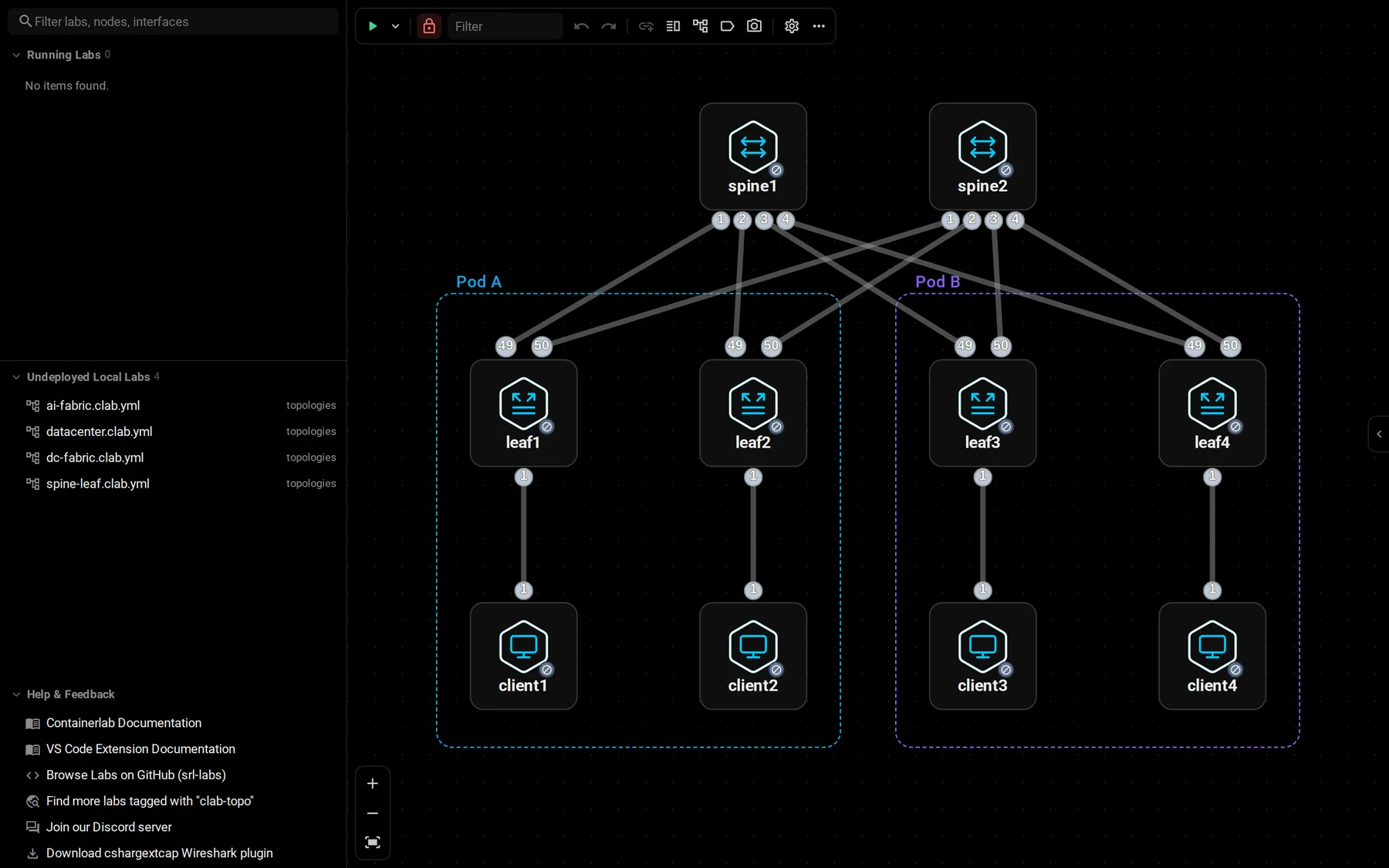
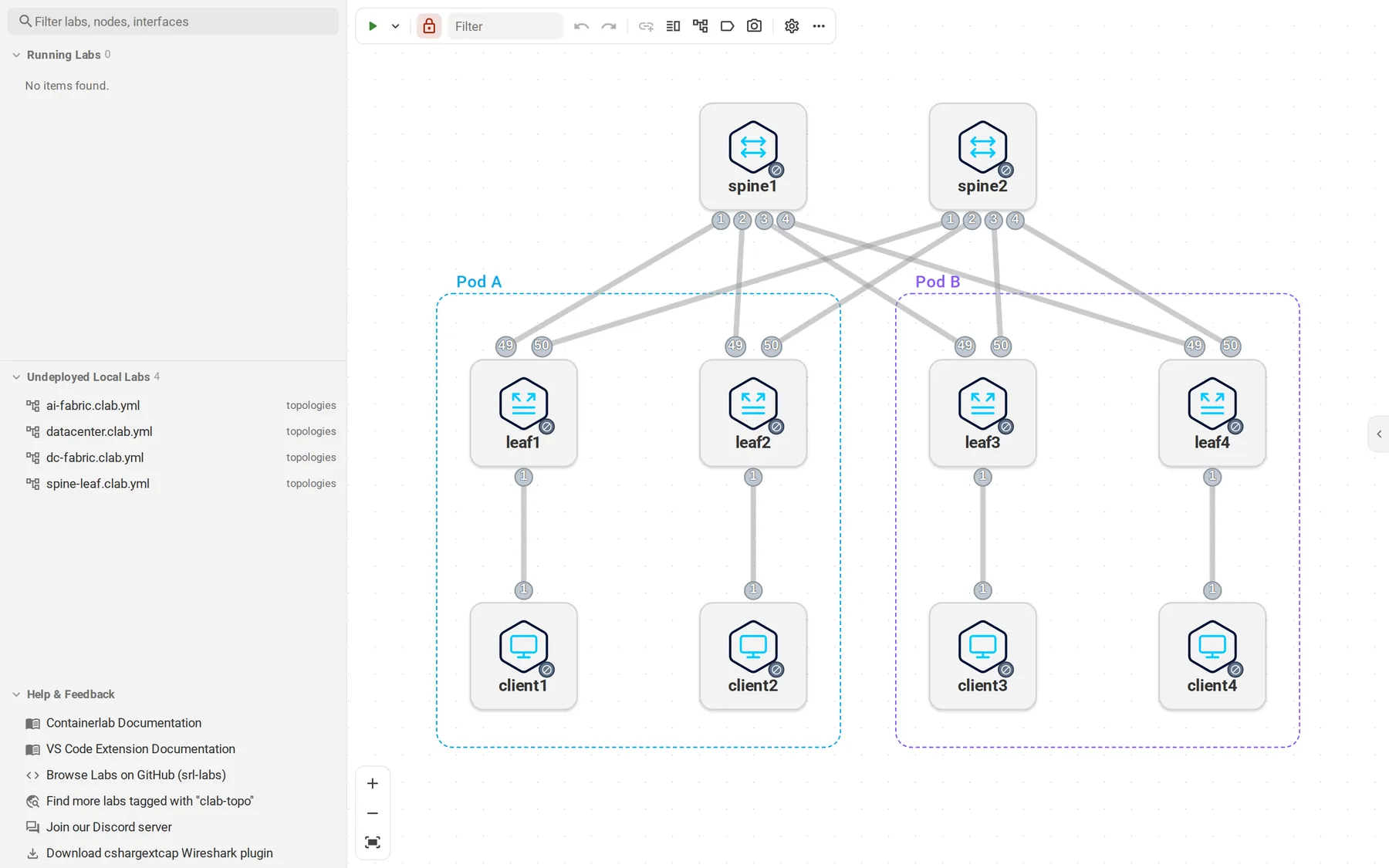
Prefer video? Here is a walkthrough of the extension on YouTube.
Work from the editor
Topology files get containerlab actions in the editor title bar, the right-click menu, and the command palette. The keyboard shortcuts work in any open .clab.yml file:
| Action | Linux and Windows | macOS |
|---|---|---|
| Deploy | Ctrl+Alt+D | Cmd+Alt+D |
| Redeploy | Ctrl+Alt+R | Cmd+Alt+R |
| Destroy | Ctrl+Alt+K | Cmd+Alt+K |
| Open the topology editor | Ctrl+Alt+G | Cmd+Alt+G |
Terminals for node shells and SSH open as VS Code terminals. Command output goes to the Containerlab output channel.
Only in VS Code
- Sharing a running lab's terminals with SSHX or GoTTY.
- fcli helpers for SR Linux labs.
- Interactive Draw.io diagrams.
Every setting is listed in the VS Code settings reference. Open them with Containerlab: Open Settings from the command palette.
If something is off
No running labs appear. VS Code is probably not connected to the machine running containerlab. Open the remote window with Remote SSH. If containerlab events do not reach the extension, set containerlab.refreshMode to polling.
Interfaces are missing. Labs deployed with containerlab older than 0.64.0 need a redeploy before interfaces and statistics show up.
Packet capture does not open. Docker must work on the machine running the extension. Check the capture settings if your browser reaches the lab host under a different name.