Tour the workspace
One screen for drawing a network, running it, and poking at it. Every app shows the same workspace; VS Code puts the explorer in its own sidebar.
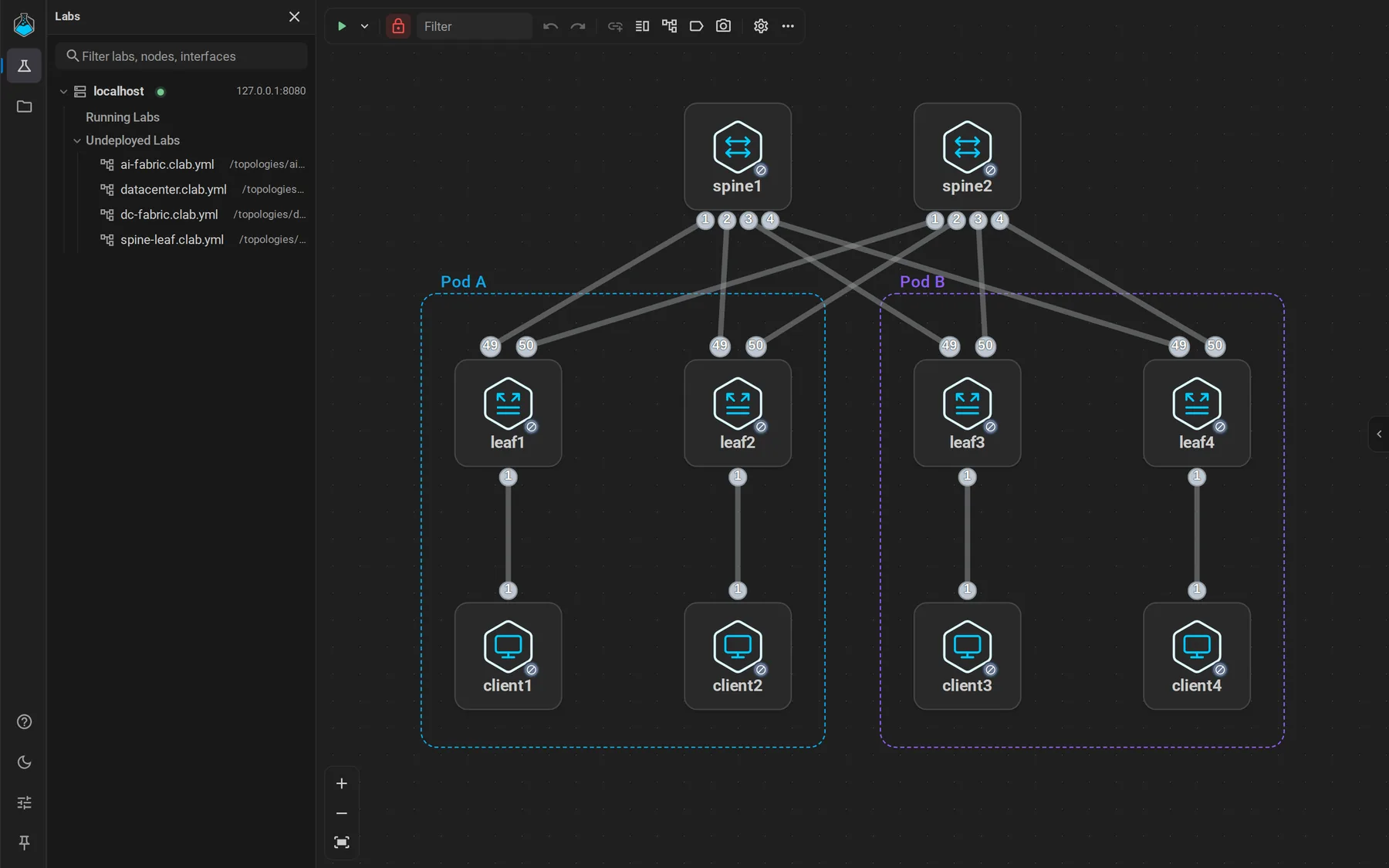
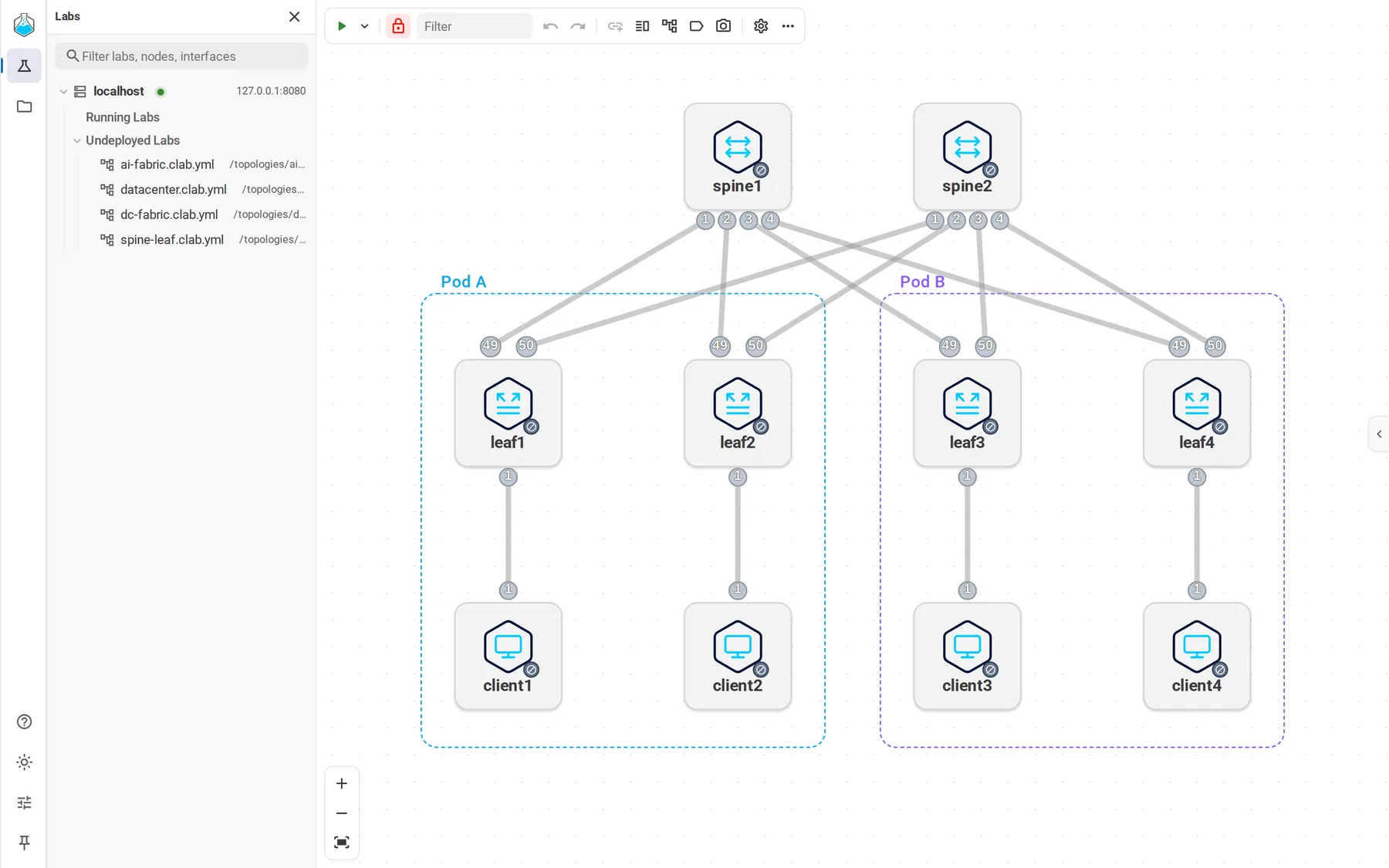
Explorer
Your labs and files. In the desktop and web apps, open it from Labs or Files in the left rail; in VS Code, from the containerlab icon in the Activity Bar.
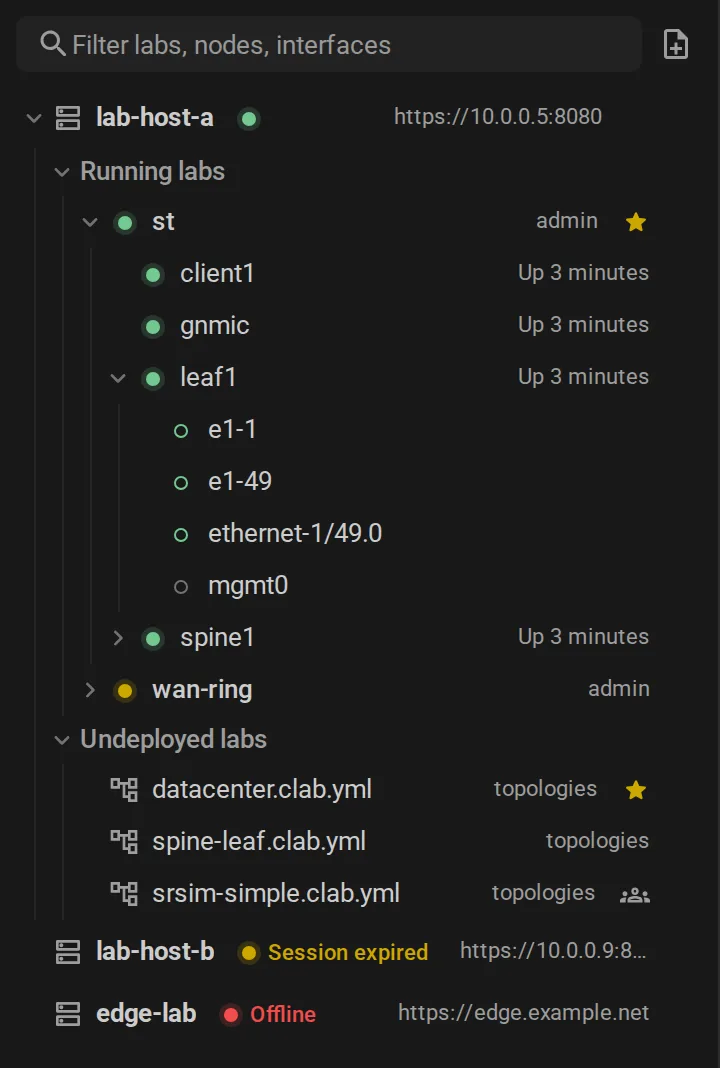
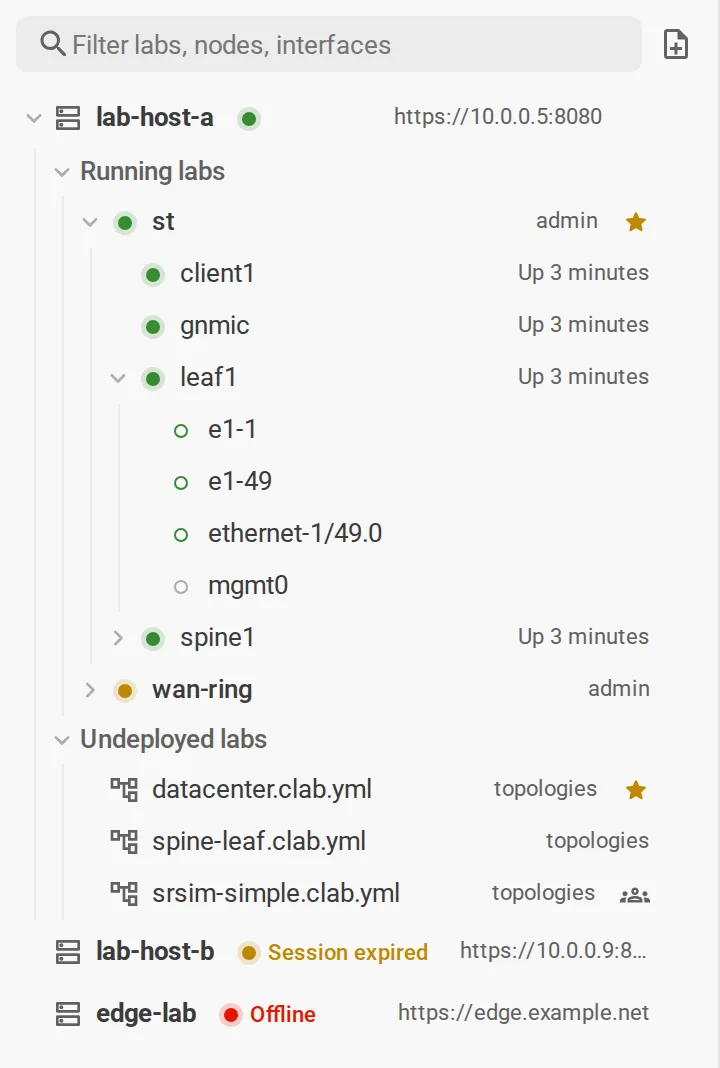
- Running labs expand to nodes and interfaces, with live interface counters.
- Undeployed labs are topology files that are not running.
- Search filters labs, nodes, and interfaces as you type.
- Right-click anything for its actions: deploy a lab, open a node's shell, capture on an interface.
- With several lab hosts, each one gets its own section and shows whether you are still signed in.
Canvas
The topology itself. Drag to pan, scroll to zoom, click to select. Double-click a node or link to edit it. Right-click for actions.
The canvas opens locked, so a stray drag changes nothing. Select the lock in the toolbar to edit.
Toolbar
Along the top of the canvas:
| Button | Does |
|---|---|
| Play and its menu | Deploy, apply, redeploy, destroy, start or stop nodes. See Run a lab. |
| Lock | Allow or block edits. |
| Filter | Find a node by name. |
| Undo, redo | Step through your edits. |
| Bulk Link Devices | Connect many nodes by name pattern. |
| Layout | Arrange the nodes automatically. |
| Links | Show interface names always, on select, or never. |
| Capture Viewport as SVG | Export what you see. |
| Lab Settings | General, Management, Appearance, and Grid settings for this lab. |
| Toggle YAML Split View | Edit the file next to the canvas. |
Panels
Panels open on the side of the canvas and stay out of the way otherwise.
- Palette: node templates, networks, and annotations to drag onto the canvas.
- Node Editor and Link Editor: every property of the selected item.
- Nodes, Annotations, YAML, and JSON tabs: lists of the lab's nodes and annotations, and the two files behind the canvas, editable.
What each app adds
| VS Code | Desktop and web | |
|---|---|---|
| Labs run | Where the extension runs | On the lab host you signed in to |
| Terminals | VS Code terminals | Terminal windows in the app |
| Exports | Saved through a VS Code dialog | Downloaded |
| Node templates | VS Code settings | Per user, per lab host |
| Extras | Draw.io, SSHX, GoTTY, fcli | Several lab hosts at once, shared labs |