Layout and style
Make the diagram readable. None of this touches your network: positions and looks are saved in the annotations file, next to the YAML.
Arrange nodes
The Layout button in the toolbar places nodes for you.
| Layout | Good for |
|---|---|
| Preset | Your own positions, as saved. |
| Auto | Most labs. Tree-like parts become layers, dense parts are spread out. |
| Force | Dense or irregular meshes. |
| Radial | Hierarchies around one central node. |
| Geo | Nodes on a map, when you have coordinates. |
A generated layout overwrites the saved positions of nodes and networks. Text, shapes, and groups stay where you put them.
Pick a style
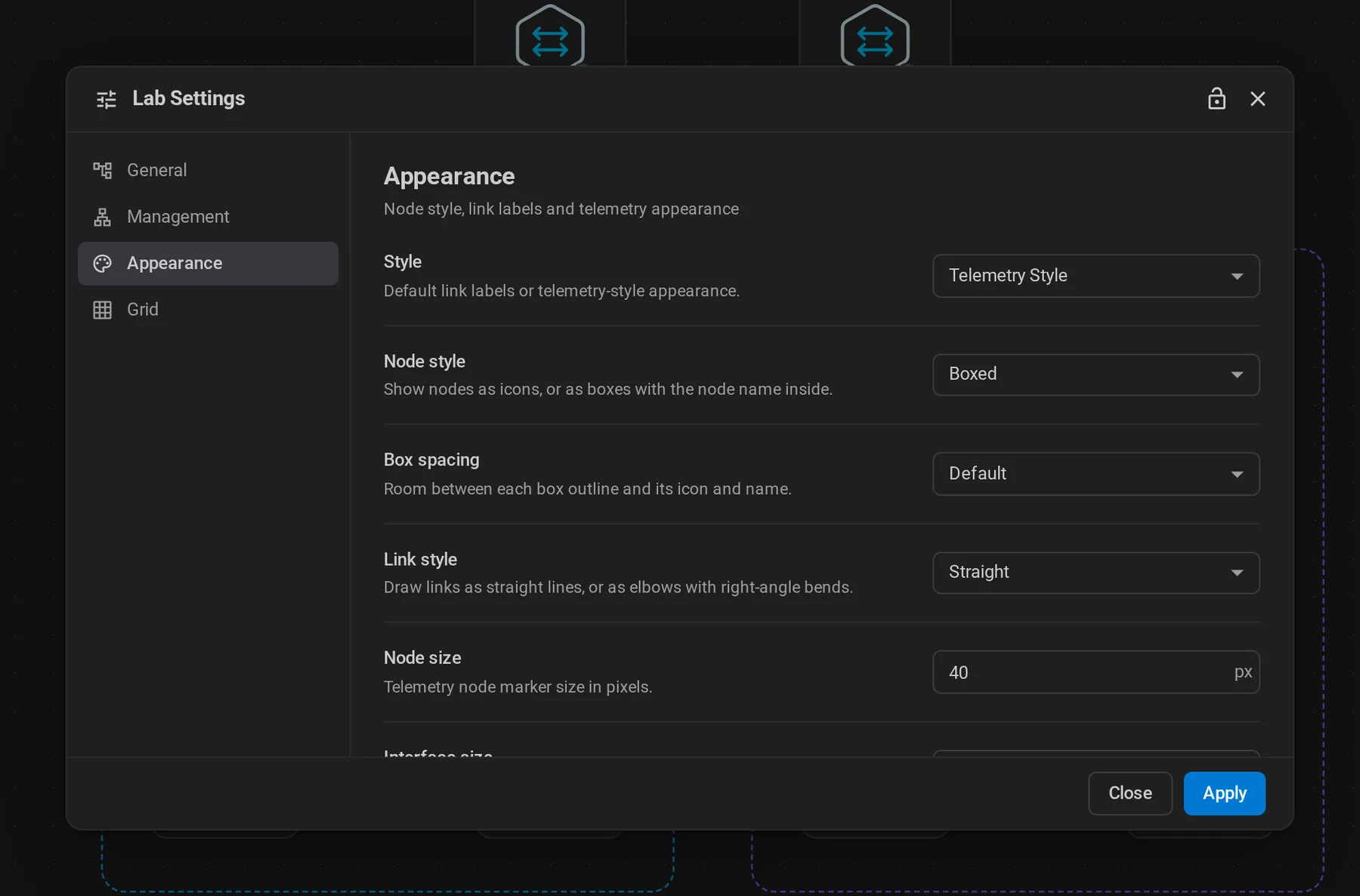
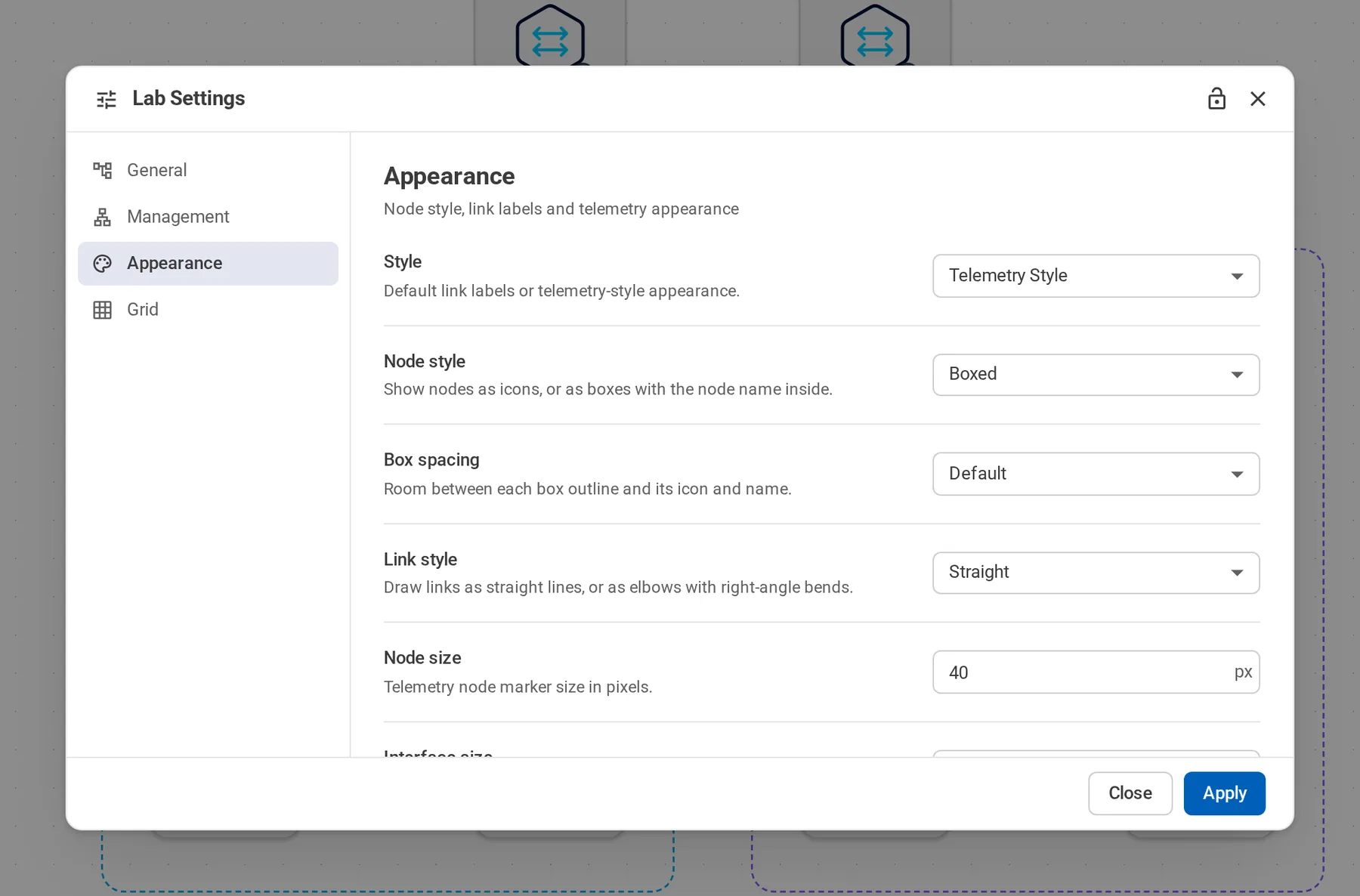
Open Lab Settings → Appearance. The same fabric in each style:
Icon
# A small fabric for comparing node styles.
name: styles

topology:
  defaults:
    kind: nokia_srlinux
    image: ghcr.io/nokia/srlinux:latest
  nodes:
    spine1: {}
    spine2: {}
    leaf1: {}
    leaf2: {}
  links:
    - endpoints: [spine1:e1-1, leaf1:e1-49]
    - endpoints: [spine1:e1-2, leaf2:e1-49]
    - endpoints: [spine2:e1-1, leaf1:e1-50]
    - endpoints: [spine2:e1-2, leaf2:e1-50]
# A small fabric for comparing node styles.
name: styles

topology:
  defaults:
    kind: nokia_srlinux
    image: ghcr.io/nokia/srlinux:latest
  nodes:
    spine1: {}
    spine2: {}
    leaf1: {}
    leaf2: {}
  links:
    - endpoints: [spine1:e1-1, leaf1:e1-49]
    - endpoints: [spine1:e1-2, leaf2:e1-49]
    - endpoints: [spine2:e1-1, leaf1:e1-50]
    - endpoints: [spine2:e1-2, leaf2:e1-50]
Icons with names below.
Boxed
# A small fabric for comparing node styles.
name: styles

topology:
  defaults:
    kind: nokia_srlinux
    image: ghcr.io/nokia/srlinux:latest
  nodes:
    spine1: {}
    spine2: {}
    leaf1: {}
    leaf2: {}
  links:
    - endpoints: [spine1:e1-1, leaf1:e1-49]
    - endpoints: [spine1:e1-2, leaf2:e1-49]
    - endpoints: [spine2:e1-1, leaf1:e1-50]
    - endpoints: [spine2:e1-2, leaf2:e1-50]
# A small fabric for comparing node styles.
name: styles

topology:
  defaults:
    kind: nokia_srlinux
    image: ghcr.io/nokia/srlinux:latest
  nodes:
    spine1: {}
    spine2: {}
    leaf1: {}
    leaf2: {}
  links:
    - endpoints: [spine1:e1-1, leaf1:e1-49]
    - endpoints: [spine1:e1-2, leaf2:e1-49]
    - endpoints: [spine2:e1-1, leaf1:e1-50]
    - endpoints: [spine2:e1-2, leaf2:e1-50]
Name inside a box. New labs start here.
Telemetry
# A small fabric for comparing node styles.
name: styles

topology:
  defaults:
    kind: nokia_srlinux
    image: ghcr.io/nokia/srlinux:latest
  nodes:
    spine1: {}
    spine2: {}
    leaf1: {}
    leaf2: {}
  links:
    - endpoints: [spine1:e1-1, leaf1:e1-49]
    - endpoints: [spine1:e1-2, leaf2:e1-49]
    - endpoints: [spine2:e1-1, leaf1:e1-50]
    - endpoints: [spine2:e1-2, leaf2:e1-50]
# A small fabric for comparing node styles.
name: styles

topology:
  defaults:
    kind: nokia_srlinux
    image: ghcr.io/nokia/srlinux:latest
  nodes:
    spine1: {}
    spine2: {}
    leaf1: {}
    leaf2: {}
  links:
    - endpoints: [spine1:e1-1, leaf1:e1-49]
    - endpoints: [spine1:e1-2, leaf2:e1-49]
    - endpoints: [spine2:e1-1, leaf1:e1-50]
    - endpoints: [spine2:e1-2, leaf2:e1-50]
Interface bubbles, like a monitoring dashboard.
- Node style: Icon or Boxed. Boxed nodes have their name inside and links attach to the box. Box spacing → Narrow fits dense labs. Long names are shortened in the middle; hover to see the full name.
- Style → Telemetry Style: compact nodes with interface bubbles. Set node and interface size to taste. It only changes the look; it does not collect any data.
- Link style: Straight or Elbow (right angles).
- Show rate labels: traffic rates next to link ends on a running lab.
- Interface names can be shortened globally or per interface.
Switching styles never moves nodes. A lab with an existing annotations file keeps the style saved in it, or Icon if it has none.
The Links button in the toolbar shows interface names always, only for the selected link, or never. Grid style and colors are under Lab Settings → Grid.
Per-node looks
In the Node Editor, set a node's icon and color. In the boxed style you also get fill, opacity, frosted glass, border, corner radius, name color, and shadow. Anything left empty follows the theme.
Groups, text, and shapes
Drag them from the Palette:
- Group frames related nodes, like racks or sites. Moving a group moves its members. Or select nodes and press Ctrl+G.
- Text for notes and titles. Markdown works.
- Rectangle, Circle, and Line, with optional arrowheads.
- Traffic Rate, under Monitoring, shows one interface's live throughput on a running lab, as a chart or a number.
The diagrams on this site use exactly these, rendered by the same viewer.